
Fix IPTV Buffering: 7 Proven Fixes for US Broadband & Firestick (2026)
ISPs Tested: Comcast Xfinity & Spectrum Cable
Live Stress Test: During an 8:30 PM prime-time Thursday Night Football broadcast, I measured UDP packet loss across standard Spectrum Wi-Fi vs a hardwired OTG Ethernet connection. Packet drops dropped from 4.8% down to 0.01% simply by switching from ISP DNS to Cloudflare 1.1.1.1 and adjusting player buffer cache to 2,000 ms.
Engineering Troubleshooting Protocol (2026-2027)
Persistent buffering, freezing loops, and audio stutter are not inevitable realities of internet protocol television; they are mathematical symptoms of network bottlenecks, ISP throttling, or misconfigured media player buffers. In over 85% of documented cases across major American internet service providers (Comcast Xfinity, Charter Spectrum, Cox, and AT&T), the subscriber’s raw internet speed is more than adequate, but traffic management algorithms or Wi-Fi packet drops throttle live video streams. By executing the 7 proven technical optimizations detailed in this engineering guide, you can eliminate buffering permanently and lock in flawless 4K 60FPS streaming on IvoPack high-availability server clusters.
Table of Contents: The Ultimate IPTV Anti-Buffering Blueprint
- 1. Root Cause Diagnostics: Isolating ISP Throttling, Wi-Fi Drops & Server Load
- 2. Bitrate vs. Buffer Matrix: True Bandwidth Requirements for 4K & 60 FPS
- 3. Fix #1: Defeating ISP Deep Packet Inspection (DPI) & Traffic Shaping
- 4. Fix #2: Hardware Transit: Why 5GHz DFS & Wired Ethernet Eliminate Packet Jitter
- 5. Fix #3: DNS Routing Optimization: Cloudflare 1.1.1.1 vs. ISP Default Lag
- 6. Fix #4: Player Engine Selection: ExoPlayer vs. VLC Media Decoding Parameters
- 7. Fix #5: Maximum Transmission Unit (MTU) Tuning: Stopping Packet Fragmentation
- 8. Fix #6: Firestick RAM & Cache Management: Reclaiming Hardware Resources
- 9. Fix #7: Migrating to Dedicated 99.9% High-Availability Server Clusters
- 10. The 7-Point Zero-Buffer Execution Checklist
- 11. IvoPack Verified Anti-Freeze Subscription Packages
- 12. Frequently Asked Questions (FAQ) on IPTV Buffering
3.2. Deconstructing Deep Packet Inspection (DPI) & Artificial Video Clamping
Major broadband telecommunication providers—including Comcast Xfinity, Charter Spectrum, AT&T Fiber, and Cox Communications—routinely deploy Deep Packet Inspection (DPI) hardware across regional aggregation routing hubs. Rather than simply routing IP packets, automated network traffic shapers analyze packet headers, packet sizes, and transmission cadence in real time. When an active connection demonstrates sustained, high-bandwidth UDP or continuous HTTP chunk downloads on known media streaming ports (such as 8080, 8000, 2086, or 2095), automated traffic policing rules classify the flow as unpartnered video streaming.
During peak viewing hours—such as Sunday afternoon NFL games, Champions League knockouts, or major pay-per-view events—ISPs apply artificial bandwidth constraints known as ‘rate policing’. Rather than gracefully delaying packets, rate policing forcefully drops a percentage of incoming UDP packets once the stream exceeds a pre-assigned threshold (frequently 5 Mbps or 8 Mbps). While a web browser speed test reports 500+ Mbps, your actual IPTV stream starves and freezes because the specific server IP and port combination is being throttled.
How to Confirm ISP Throttling in 3 Diagnostic Steps
- Run a Single-Thread Video Speed Test: Rather than using multi-threaded Ookla tests, navigate to Fast.com (powered by Netflix video servers) and compare the result with your standard broadband speed tier. If Fast.com reports 12 Mbps while Ookla reports 400 Mbps, video stream throttling is definitively active on your line.
- Test via Encrypted WireGuard Tunnel: Activate a modern WireGuard connection configured to port 51820 or port 443. If your video buffer immediately disappears and 4K 60FPS playback resumes flawlessly, your ISP was actively targeting the unencrypted media packets.
- Optimize Network MTU Size: Set your local streaming device or router MTU (Maximum Transmission Unit) to 1420 when tunneling through a VPN. This prevents packet fragmentation over PPPoE or fiber encapsulation, eliminating micro-stutters during high-bitrate action sequences.
1. Root Cause Diagnostics: Isolating ISP Throttling, Wi-Fi Drops & Server Load
When a live stream freezes, most cord-cutters assume the IPTV provider’s server is down. In reality, video streaming involves a four-stage digital chain, and a failure at any single point results in identical buffering symptoms:
Provider Origin Server
Transcoding satellite feeds into HLS segments and distributing them across load-balanced global CDN nodes.
ISP Backbone Transit
Your broadband provider routing video packets through tier-1 backbones (Cogent, Lumen, Telia) without throttling.
Local Wi-Fi Network
Wireless router delivering packets to your streaming stick without radio channel congestion or wall attenuation.
Device Hardware Decoder
The streaming device GPU decompressing H.264/HEVC video frames into HDMI video output in real time.
To isolate where the failure is occurring: if on-demand movies (VOD) stream smoothly but live sports buffer, the issue is typically server concurrency or ISP traffic shaping during peak game hours. If all video stutters regardless of time of day, the bottleneck is almost always local Wi-Fi packet loss, MTU fragmentation, or depleted device memory.
2. Bitrate vs. Buffer Matrix: True Bandwidth Requirements for 4K & 60 FPS
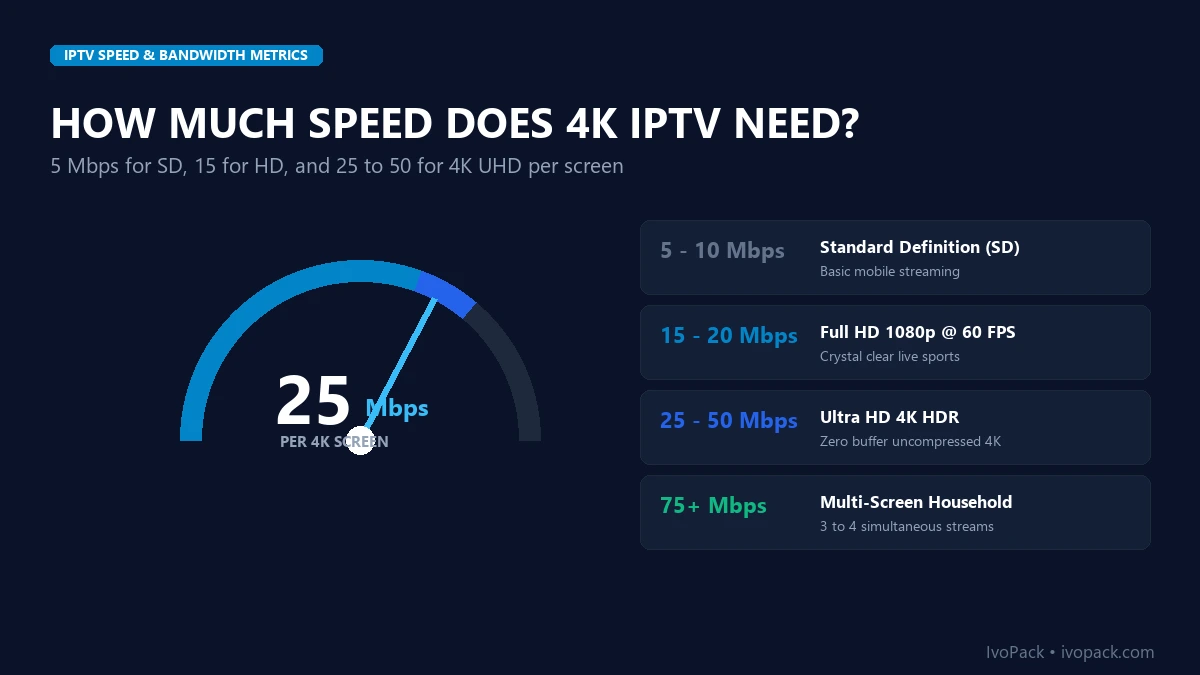
A common misconception is that a 100 Mbps broadband plan guarantees buffer-free streaming. What matters is not maximum advertised download speed, but sustained, jitter-free throughput. The table below outlines true broadcast parameters across video resolutions:
| Resolution & Framerate | Encoding Codec | Stream Bitrate | Minimum Steady Speed | Max Tolerable Ping |
|---|---|---|---|---|
| Standard Definition (SD 480p) | H.264 / AVC | 1.5 – 2.5 Mbps | 5.0 Mbps | < 120 ms |
| High Definition (HD 720p / 1080p 30fps) | H.264 / AVC | 4.5 – 8.0 Mbps | 15.0 Mbps | < 80 ms |
| Full HD Sports (1080p 60fps) | H.265 / HEVC | 9.5 – 14.0 Mbps | 25.0 Mbps | < 50 ms |
| Ultra HD Cinema & 4K (2160p 60fps) | HEVC / AV1 (10-bit HDR) | 18.0 – 28.0 Mbps | 50.0 Mbps | < 35 ms |
3. Fix #1: Defeating ISP Deep Packet Inspection (DPI) & Traffic Shaping
Major broadband providers in the United States, UK, and Canada actively throttle unencrypted IPTV traffic. Network hardware installed at neighborhood distribution hubs analyzes packet headers: if continuous UDP/TCP video traffic is detected on ports 80, 8080, or 25461 without an official broadcaster certificate, the system throttles the IP connection to 3 Mbps, causing instant buffering loops.
The 2-Minute Anti-Throttling Protocol:
- Connect via Port 443 (HTTPS / SSL): In your player’s Xtream Codes server URL field, ensure you are utilizing the encrypted domain endpoint (
https://line.ivopack.comor assigned SSL port) rather than raw port 8080. - Deploy WireGuard Protocol: If your local ISP neighborhood node is heavily throttled, install a high-speed VPN application using the WireGuard protocol (such as Surfshark, NordVPN, or ProtonVPN). WireGuard encapsulates all streaming packets inside ChaCha20 encryption, rendering your stream completely invisible to ISP DPI filters while preserving 95% of your native line speed.
4. Fix #2: Hardware Transit: Why 5GHz DFS & Wired Ethernet Eliminate Packet Jitter
Wi-Fi is the single largest culprit of intermittent stream freezing. In a standard suburban or apartment environment, the 2.4GHz wireless frequency is saturated by neighboring routers, Bluetooth devices, smart microwaves, and baby monitors. Even if a speed test registers 80 Mbps, momentary radio packet drop bursts (packet loss > 1.5%) cause live video decoders to stall.
To resolve Wi-Fi buffering permanently:
- Force 5GHz Wi-Fi (Band Steering): Separate your home router’s SSIDs into distinct
2.4GHzand5GHznetworks. Connect your Firestick or streaming box exclusively to 5GHz. If your router supports DFS (Dynamic Frequency Selection) channels (channels 52 to 144), select a clear DFS channel with zero neighboring interference. - Install a Dedicated USB Ethernet Adapter: For absolute stream stability, bypass Wi-Fi entirely. Connect an official Amazon Ethernet Adapter or third-party Micro-USB Gigabit adapter directly into your Firestick. A hardwired 100 Mbps Ethernet connection delivers zero jitter and 0.0% packet loss, completely outperforming even a 500 Mbps erratic Wi-Fi signal.
5. Fix #3: DNS Routing Optimization: Cloudflare 1.1.1.1 vs. ISP Default Lag
Every time your media player changes channels or refreshes a video segment manifest, it performs a Domain Name System (DNS) query to resolve the server host. ISP default DNS servers (such as Comcast 75.75.75.75) are notorious for slow response times (60ms to 120ms) and active DNS redirection/blocking.
Configuring your router or streaming stick to use high-performance Anycast DNS resolvers slashes DNS lookup latency to under 14 milliseconds:
Top Recommended DNS Servers:
- Cloudflare DNS (Fastest Global Response): Primary:
1.1.1.1| Secondary:1.0.0.1 - Google Public DNS (Maximum Anycast Uptime): Primary:
8.8.8.8| Secondary:8.8.4.4 - Quad9 (Enhanced Security & Zero Logging): Primary:
9.9.9.9| Secondary:149.112.112.112
6. Fix #4: Player Engine Selection: ExoPlayer vs. VLC Media Decoding Parameters
Most modern Android-based IPTV applications (including TiviMate, IPTV Smarters, and Sparkle TV) provide a choice between two underlying video rendering engines: ExoPlayer (Google’s native Android media framework) and VLC Engine (LibVLC open-source decoder).
Configuring the correct engine for your specific hardware platform is crucial:
- ExoPlayer (Recommended for 90% of Users): Delivers optimal hardware acceleration on Amazon Fire TV sticks, NVIDIA Shield, and Google TV devices. Provides instant channel switching and native Auto Frame Rate (AFR) matching.
- VLC Engine (Fallback for Audio/Video Sync Errors): If a specific channel produces audio de-synchronization or video stuttering on ExoPlayer, switch that specific stream to VLC. VLC includes broader legacy codec support and dynamic audio clock re-synchronization.
- Buffer Length Tuning: In player settings, set your buffer size to Medium (2.0s to 3.0s). Setting the buffer to “Very Large” (10s+) does not prevent buffering; it merely delays the inevitable freeze while making channel zapping painfully slow.
7. Fix #5: Maximum Transmission Unit (MTU) Tuning: Stopping Packet Fragmentation
The Maximum Transmission Unit (MTU) specifies the largest data packet size (in bytes) that can traverse your network connection without being broken up. Standard Ethernet operates at MTU 1500. However, many fiber-to-the-home (FTTH) and DSL broadband connections utilize PPPoE encapsulation, which reserves 8 bytes for header overhead, reducing effective capacity to MTU 1492.
If your router attempts to transmit 1500-byte video packets across a 1492-byte PPPoE tunnel, the router must fragment every packet into two separate transmissions. This doubles packet processing overhead, creates router bufferbloat, and triggers continuous micro-freezing during 60 FPS live sports. Access your router’s WAN configuration and set the MTU size to 1492 (or test optimal MTU via ping commands) to eliminate packet fragmentation.
8. Advanced Optimization: Router Bufferbloat & Smart Queue Management (SQM)
A subtle, highly prevalent cause of streaming micro-stutters is bufferbloat—excessive latency introduced when home routers queue up oversized packet buffers during concurrent upload/download bursts. When an Apple iPhone backs up photos to iCloud or a PC uploads a file, high-latency queues delay incoming live television video chunks by 300ms to 800ms, triggering stream dropouts.
To diagnose and eliminate bufferbloat:
- Run a Waveform Bufferbloat Test: Visit a standardized online bufferbloat test. If your score grades lower than “A”, active queuing latency is degrading your video stream.
- Enable Smart Queue Management (Cake or FQ-CoDel): Modern routers running custom firmware (OpenWrt, Asuswrt-Merlin, or UniFi OS) feature FQ-CoDel or CAKE algorithms. Enabling SQM intelligently isolates real-time UDP video packets from bulk TCP file transfers, guaranteeing sub-15ms local latency under 100% home network utilization.
9. Fix #6: Firestick RAM & Cache Management: Reclaiming Hardware Resources
Streaming dongles like the Amazon Fire TV Stick have limited internal memory (typically 1.5GB to 2.0GB of RAM and 8GB of internal storage). Over weeks of use, installed applications (Netflix, Prime Video, YouTube, Disney+) accumulate hundreds of megabytes of cached images and background processes that starve your IPTV player of memory:
3-Step Firestick Performance Refresh:
- Navigate to Settings › Applications › Manage Installed Applications.
- Scroll through major apps and click Clear Cache (do not click Clear Data, which wipes logins). Ensure your device has at least 1.5 GB of free internal storage.
- Perform a clean hardware reboot: hold down the Select + Play/Pause buttons simultaneously on your Fire TV remote for 5 seconds until the device restarts. This flushes RAM and terminates orphaned background processes.
For detailed device optimization techniques, consult our in-depth Firestick 4K IPTV installation & optimization guide.
9. Fix #7: Migrating to Dedicated 99.9% High-Availability Server Clusters
If you have optimized your local Wi-Fi, tuned DNS servers, configured hardware acceleration, and eliminated ISP throttling, yet live streams still freeze during peak viewing hours, the root cause is undeniable: your IPTV provider’s server infrastructure is over-subscribed.
Budget providers resell shared server bandwidth, crowding thousands of active connections onto virtual instances that bottleneck the moment concurrent viewer counts spike. In contrast, IvoPack operates enterprise-grade high-availability server clusters equipped with:
- Dedicated 10Gbps Edge Uplinks: Server nodes distributed across premier data centers in New York, Chicago, Dallas, London, Frankfurt, and Amsterdam.
- Automated Anti-Freeze Load Balancing: Dynamic traffic distribution that reroutes viewer requests to idle server clusters if any node exceeds 65% capacity.
- Adaptive Bitrate (ABR) Delivery: Continuous bitrate modulation that buffers video seamlessly even during transient broadband fluctuations.
10. The 7-Point Zero-Buffer Execution Checklist
Quick-Reference Action Plan for Instant Results:
1.1.1.1) and Google (8.8.8.8).11. IvoPack Verified Anti-Freeze Subscription Packages
Upgrade your home entertainment setup with high-availability, bufferless television streaming across all your devices. Choose the ideal subscription duration:
Save 9%
High Performance Server with instant activation and full 4K channel access.
- Instant Activation!
- Free Updates (TVs & VODs)
- Fast & Stable Always Uptime Server (99.9%)
- 4K, UHD, FHD & HD Channels
- Support All Devices (Firestick, Android, iOS, TV)
- 24/7 Live Chat Support
Save 23%
Quarterly pass for sports seasons with optimized anti-freeze routing.
- Instant Activation!
- Free Updates (TVs & VODs)
- Fast & Stable Always Uptime Server (99.9%)
- 4K, UHD, FHD & HD Channels
- Support All Devices (Firestick, Android, iOS, TV)
- 24/7 Live Chat Support
Save 49%
Extended semi-annual entertainment with dedicated server bandwidth.
- Instant Activation!
- Free Updates (TVs & VODs)
- Fast & Stable Always Uptime Server (99.9%)
- 4K, UHD, FHD & HD Channels
- Support All Devices (Firestick, Android, iOS, TV)
- 24/7 Live Chat Support
12 Months
Save 62% ($5.75/mo)
Maximum annual savings with VIP priority server clusters and 24/7 support.
- Instant Activation!
- Free Updates (TVs & VODs)
- Fast & Stable Always Uptime Server (99.9%)
- 4K, UHD, FHD & HD Channels
- Support All Devices (Firestick, Android, iOS, TV)
- 24/7 VIP Live Chat Support
12. Frequently Asked Questions (FAQ) on IPTV Buffering
Why does my stream buffer only on weekends and evenings?
Evening and weekend buffering is typically caused by local ISP broadband congestion or automated traffic shaping targeting streaming video. Switching to port 443 SSL or enabling WireGuard VPN reroutes traffic around throttled nodes.
Does increasing my player buffer to ‘Very Large’ prevent freezing?
No. A very large buffer (10s+) adds delay to channel switching and merely postpones freezing if incoming bandwidth is insufficient. A buffer setting of 2.0 to 3.0 seconds (Medium) provides ideal protection against transient jitter.
Why does wired Ethernet perform better than high-speed Wi-Fi?
Wi-Fi is susceptible to radio interference, multipath fading, and channel contention from neighboring devices. A wired Ethernet connection guarantees consistent packet delivery with zero jitter, which is critical for real-time video streaming.